
HDMI to DisplayPort vs DisplayPort to HDMI: Why Direction Matters
A cable can fit both devices and still leave your monitor showing “No Signal.” One common cause is choosing the wrong conversion direction. HDMI to DisplayPort and DisplayPort to HDMI are not interchangeable connections, even when the products have similar-looking plugs.
PCCables.com carries DisplayPort-to-HDMI cables and adapters for connecting DisplayPort-equipped computers to HDMI monitors, TVs and projectors. Understanding which device sends the picture helps you choose the right connection before ordering.


Start with the Computer’s Output and Monitor’s Input
The source sends the video signal. This is usually your computer, graphics card or another playback device. The display receives it through an input on the monitor, TV or projector.
Read the connection in that order:
| Source Output | Display Input | Connection Needed |
|---|---|---|
| DisplayPort | HDMI | DisplayPort to HDMI |
| HDMI | DisplayPort | HDMI to DisplayPort |
An adapter intended for the first arrangement should not be assumed to work in the second. Check the product’s stated input, output and supported direction, not just its connector photographs.
DisplayPort to HDMI: Connecting a Computer to an HDMI Display
This setup connects a computer’s DisplayPort output to an HDMI monitor, TV or projector.
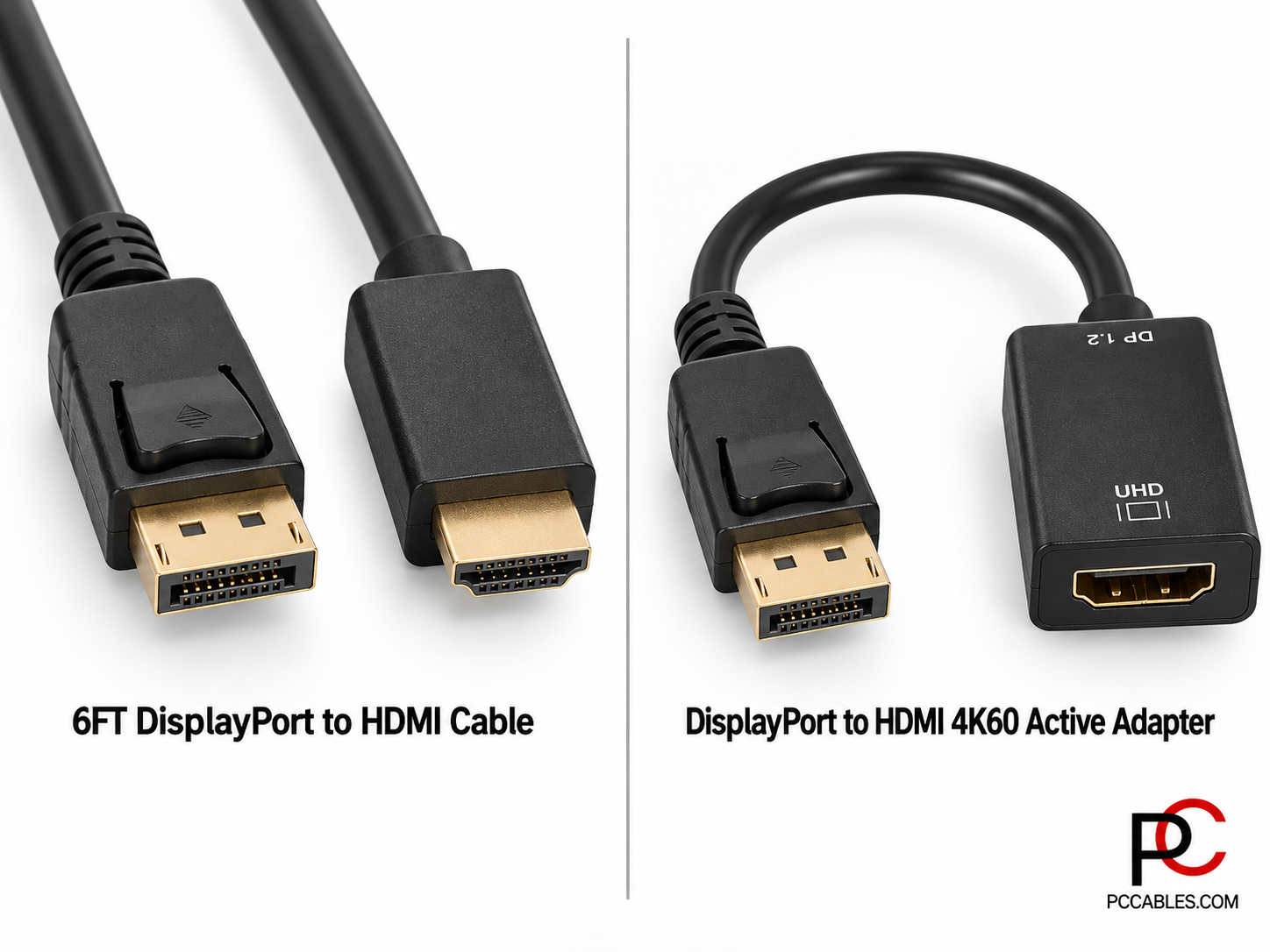
PCCables.com offers DisplayPort-to-HDMI cables in 3FT, 6FT, 10FT and 15FT lengths. The 6FT DisplayPort-to-HDMI cable provides one complete cable connection. Its specifications explicitly identify the direction as DisplayPort source to HDMI monitor.
For compatible 4K at 60Hz setups, the active DisplayPort-to-HDMI adapter supports DisplayPort 1.2 input and HDMI 2.0 output. It carries audio and video and provides an HDMI female socket for a separate HDMI cable.
Active vs Passive DisplayPort-to-HDMI Adapters
A passive DisplayPort-to-HDMI adapter relies on a source that supports Dual-Mode DisplayPort, commonly called DP++. That source can provide an HDMI-compatible signal through its DisplayPort output.
An active adapter converts the native DisplayPort signal electronically. It does not rely on DP++ and can support connection requirements beyond those of a particular passive adapter. However, “active” does not automatically mean higher resolution or better performance. The adapter’s specifications still determine what it supports.
Active also does not necessarily mean a separate power supply. DisplayPort can supply power to connected adapters through the port itself.


Can You Use a DisplayPort-to-HDMI Cable in Reverse?
No. An HDMI source connected to a DisplayPort monitor requires a dedicated active HDMI-to-DisplayPort converter. PCCables.com’s DisplayPort-to-HDMI cables and adapters work in the opposite direction and cannot be reversed.
Check Resolution, Refresh Rate and Audio
“Supports 4K” is not a complete performance specification. A converter rated for 4K at 30Hz is different from one rated for 4K at 60Hz. Higher refresh rates, HDR and variable refresh rate support also need explicit confirmation from the converter manufacturer.
Both HDMI and DisplayPort can carry audio, and compatible DisplayPort-to-HDMI adapters can pass it through. Check the adapter and connected equipment rather than assuming every conversion supports the same features.
 Hunter
Why Does My Adapter Show No Signal?
Check conversion direction first, followed by the adapter type and any required USB power. Then confirm that the monitor is set to the correct input and that both cable ends are fully seated. These checks can identify a connection problem before you replace working equipment.
When both devices offer the same interface, a direct HDMI-to-HDMI or DisplayPort-to-DisplayPort connection avoids the additional compatibility requirements of conversion.
Find the Right Connection at PCCables.com
Browse PCCables.com’s DisplayPort-to-HDMI selection for compatible cables and adapters, or visit the PCCables.com Blog for more display-connection guides.
For broader cable-selection advice, see Choosing the Right DisplayPort Cable or Adapter for Your Monitor.
Match the signal direction first. Then choose the resolution, refresh rate and cable length your setup needs.

See more of our blog posts here!


Check out our website for all your cable needs!